

NVIDIA CUDA
CUDA (Compute Unified Device Architecture) is the soul of NVIDIA GPUs: it transforms a graphics card from a gaming device into a massively parallel supercomputer.
Combined with cuDNN (CUDA Deep Neural Network Library), we can leverage GPU-accelerated model training in PyTorch or TensorFlow.
This guide walks through correctly installing and configuring these core components on Windows. Once you understand the configuration, the same process applies to a Linux environment with minor adjustments.
1. Updating the GPU Driver
Before installing CUDA, having a healthy driver version is a prerequisite.1
Check system information
Right-click on an empty area of the desktop, open the NVIDIA Control Panel, and click “System Information” in the lower-left corner.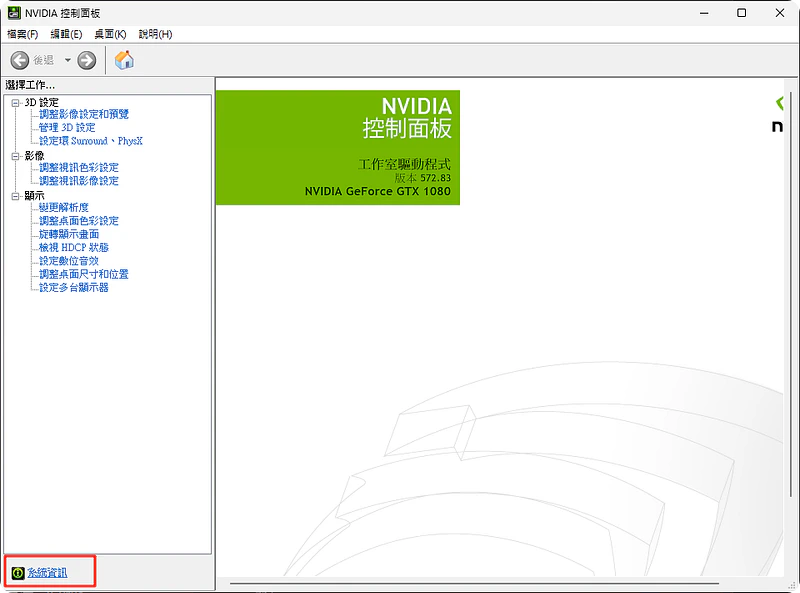
2
Confirm the current version
In System Information, you can see the current driver version and the maximum supported CUDA version.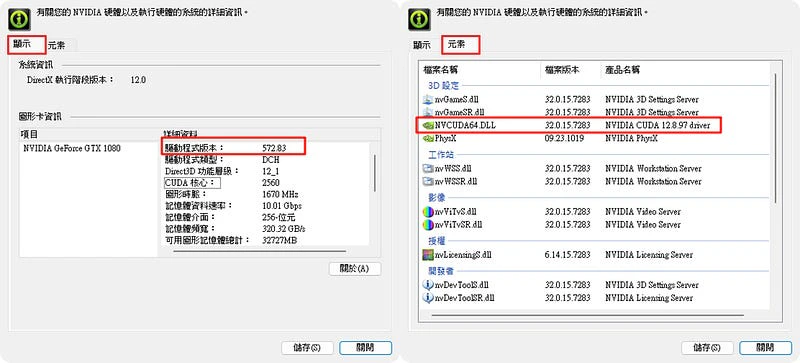
3
Download the latest driver
Go to the NVIDIA Driver Downloads page.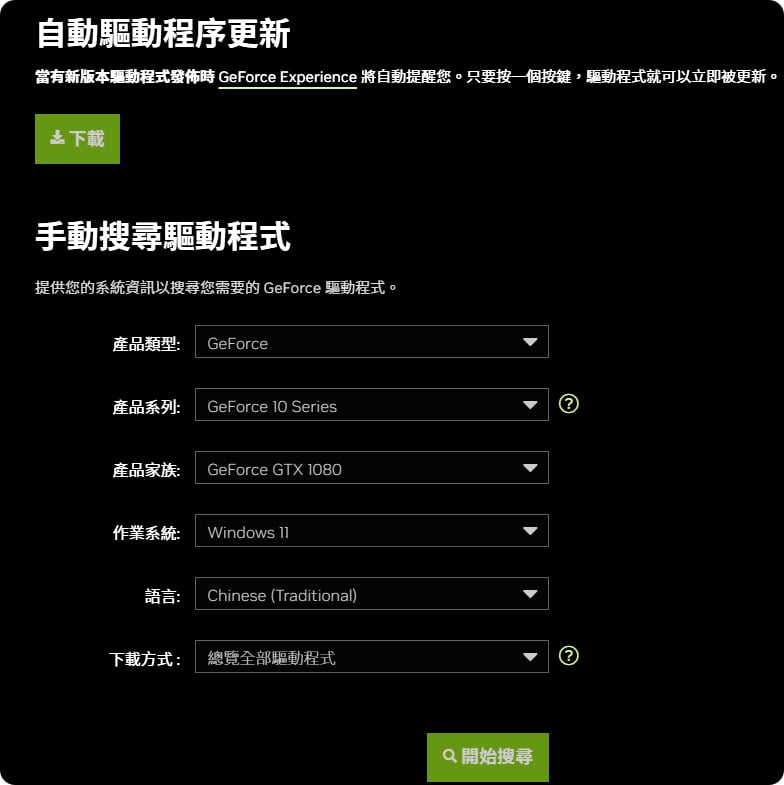
Studio Driver or Game Ready?
- Game Ready Driver: Optimized for the latest games, updated frequently.
- Studio Driver: Optimized for creative software (Blender, Premiere) and stability.
4
Install and restart
Run the installer after downloading. Screen flickering and brief blackouts during installation are normal. After installation, be sure to restart your computer to apply the changes.
5
Verify the driver
After restarting, verify that the driver version is correct.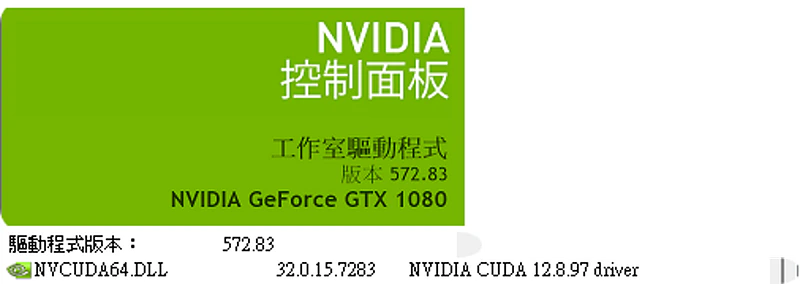
2. Installing the CUDA Toolkit
The CUDA Toolkit includes compilers, development tools, and runtime libraries. For the official installation procedure, refer to the CUDA Installation Guide for Microsoft Windows.Overview
- CUDA (Compute Unified Device Architecture) is a parallel computing platform and programming model developed by NVIDIA. It harnesses the computational power of NVIDIA GPUs to accelerate scientific computing, image processing, machine learning, and more. It achieves high-performance parallel processing by distributing computational tasks across thousands of GPU cores.
- cuDNN (CUDA Deep Neural Network Library) is a high-performance library optimized by NVIDIA for deep learning, built on top of CUDA.
1
Confirm version requirements
Newer is not always better! First check which versions your deep learning framework (PyTorch/TensorFlow) supports.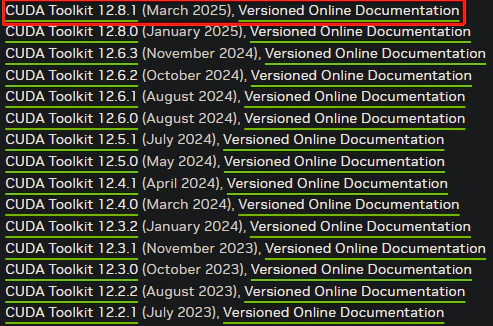
- CUDA Toolkit selection example
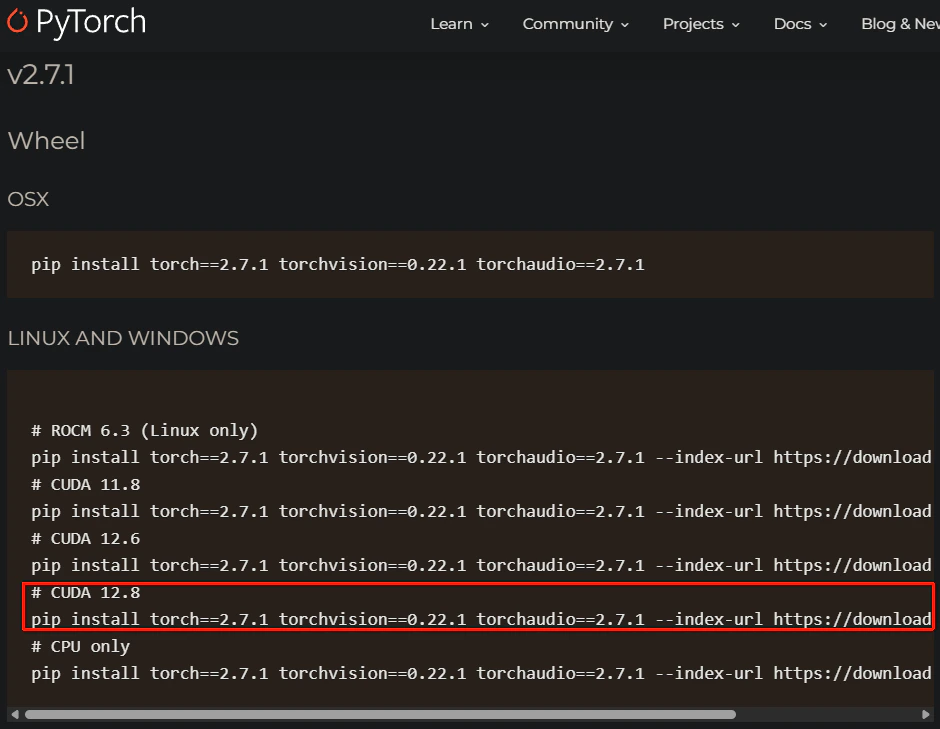
- PyTorch selection example
This example uses CUDA 12.8.1 as a demonstration.
Note that you must confirm which versions PyTorch supports.
2
Choose the installer type
On the download page, you will see two installer types: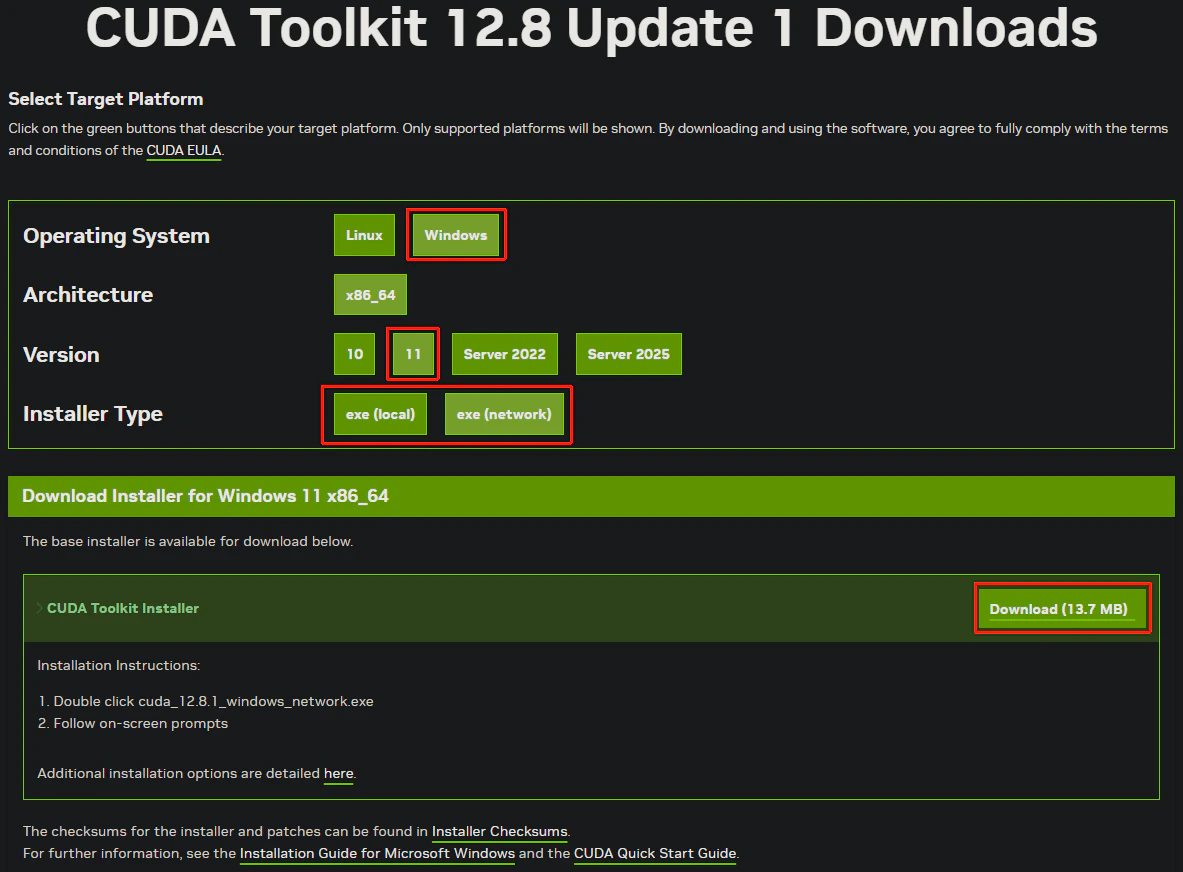
3
Run the installer
Execute the downloaded 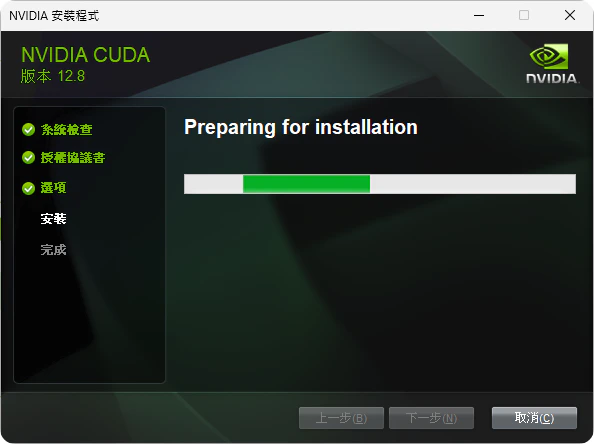
.exe file. For most users, selecting “Express” installation is sufficient.If you are an advanced user who needs multiple CUDA versions to coexist, choose “Custom” and deselect the Driver component (since you already installed the latest driver in step 1).4
Verify environment variables
The installer normally adds environment variables automatically. Check whether If you see output similar to 
CUDA_PATH is present:- Search for “Edit the system environment variables”
- Click “Environment Variables”
-
Look for
CUDA_PATHunder system variables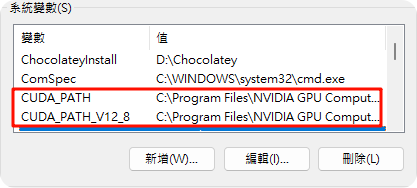
Open a terminal (PowerShell / CMD) and run the verification command:
Cuda compilation tools, release 12.x, V12.x.x, the installation was successful.3. Configuring cuDNN
cuDNN is the critical library that accelerates neural network computation. It is not an executable; it is a set of binary files that must be placed manually.1
Download cuDNN
Go to the cuDNN Archive (requires an NVIDIA Developer account login).
Download the Zip archive that corresponds to your CUDA version (12.x for CUDA 12.x).The cuDNN version number (e.g., cuDNN v8.x.x) refers to NVIDIA’s versioning of the library itself.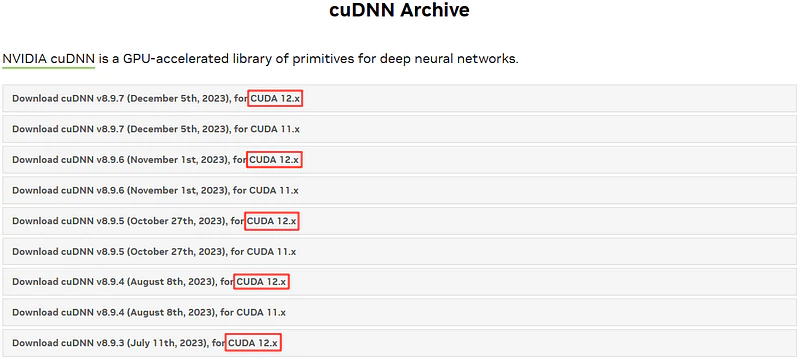
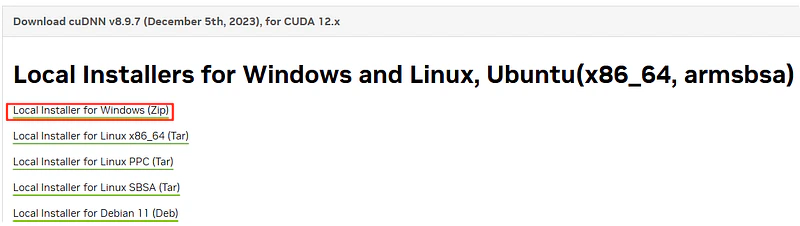
2
Extract and copy files
Extract the downloaded zip file. You will see folders named Copy each file to the CUDA install directory (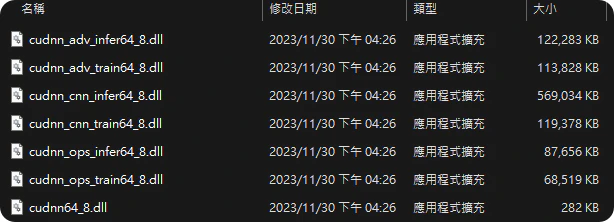
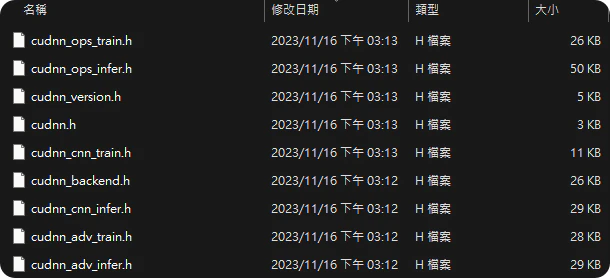
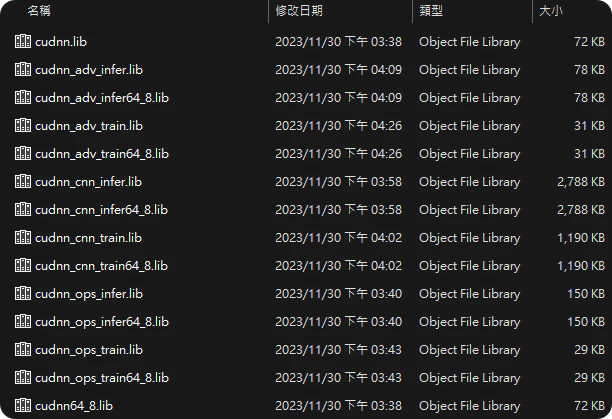
bin, include, and lib. You need to copy these files into the CUDA installation directory.Default CUDA path: C:\Program Files\NVIDIA GPU Computing Toolkit\CUDA\v12.xPerform the following copy operations in order (the system may prompt for administrator privileges):Extracted folder
bin
cudnn*.dll
include
cudnn*.h
lib
x64
cudnn*.lib
... = C:\Program Files\NVIDIA GPU Computing Toolkit\CUDA\v12.x):bin\cudnn*.dll➡️...\bininclude\cudnn*.h➡️...\includelib\x64\cudnn*.lib➡️...\lib\x64
3
Check cuDNN environment variables
Ensure that
C:\Program Files\NVIDIA GPU Computing Toolkit\CUDA\v12.x\bin has been added to the system Path environment variable.C:\Program Files\NVIDIA GPU Computing Toolkit\CUDA\v12.x\lib\x64 does not need to be added to the system Path (it is handled by the compiler configuration).- Ensure the runtime can locate
.dllfiles (addbinto PATH). - Ensure the compiler can locate
.libfiles (handled by compiler configuration). - If you need to specify the
lib\x64path explicitly, configure it in your compiler settings (e.g., the library path in Visual Studio).
4. Verification and Testing
The environment is set up, but does it actually work? First, see what the full verification flow looks like end to end: fromnvidia-smi to confirm the driver, nvcc -V to confirm the compiler, to a PyTorch cuDNN test. The output you should see at each step on success is all here.
Run nvidia-smi in a terminal to see the maximum CUDA version supported by your driver (e.g., CUDA Version: 12.4).
Create a test environment
Using Conda to isolate the environment is recommended, to avoid conflicts with the system Python.Run a test script
Create agpu_test.py file and execute it:
gpu_test.py
✓ cuDNN Test Passed!, congratulations, your GPU computing environment is ready.
Troubleshooting
Q: nvcc -V command not found?
A: Confirm that C:\Program Files\NVIDIA GPU Computing Toolkit\CUDA\v12.x\bin has been added to the Path system environment variable.
Q: PyTorch raises AssertionError: Torch not compiled with CUDA enabled
A: You likely installed the CPU-only version of PyTorch. Run pip uninstall torch to remove it, then reinstall using --index-url to point to the CUDA-enabled wheel source.